
TLDR;
- Go here: https://getvibecast.live
- Enter invite code VibeCaster
- Authorize with Twitch
- Copy your Overlay URL, paste into OBS as a new browser source set to 1920 x 1080.
- When you tweak any settings, refresh the source (turn it off and then on again)
A huge thank you for signing up to test VibeCast! You’re among the very first people to get hands-on with my new obsession, and your feedback is going to help shape what it becomes. This page will walk you through everything you need to know to get started — no technical knowledge required, I promise. (or very little, come on, this is streaming related!)
So, What Is VibeCast?
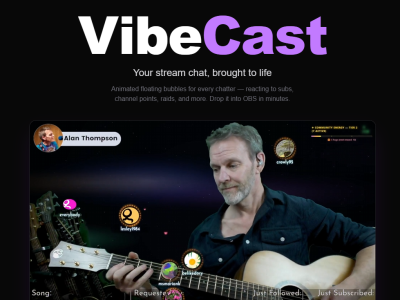
VibeCast is a live stream overlay tool that brings your chat to life. Instead of just a list of names scrolling past, VibeCast turns your Twitch viewers into animated 3D bubbles that float around on screen, reacting in real time to chat activity, @messages, !hugs, !sl and !sr requests and various channel point redeems to give your stream a unique, dynamic look.
It’s designed for streamers who want their community to feel present — not just a number in the corner.
What You’ll Need Before You Start
You don’t need to be techy to use VibeCast, but you will need a couple of things in place:
- A Twitch account — this is what VibeCast connects to.
- A streaming setup — VibeCast works as a Browser Source inside OBS Studio or Streamlabs OBS. If you’re already streaming, you almost certainly have one of these.
- A VibeCast account — head to getvibecast.live and sign up. It takes less than a minute!
That’s it. If you’ve got those three things, you’re ready to go.
Getting Set Up — Step by Step
Step 1: Create Your Account
Go to getvibecast.live and scroll down to the bottom of the page.
This very early test period is by invite only and you need to enter the invite code, then press the Enter button.
Invite code
VibeCaster
Step 2: Connect Your Twitch Channel
You will then be taken to the Twitch authorisation page. Twitch will ask you to give VibeCast permission to read your chat. This is completely safe and is how VibeCast knows who’s in your stream. Click on the “Authorize” button at the bottom of the screen. You will then be taken to your VibeCast dashboard.
Step 3: Copy Your Overlay Link
VibeCast will generate a unique Browser Source URL just for you.
Copy this link — you’ll need it in the next step.
Step 4: Tweak your settings
I’ve built in loads of options so you can tweak the look and feel of the overlay, and choose what it reacts to. This is where you can make the overlay really unique to you and your stream.
Whenever you choose new options, remember to click the Save button at the bottom of the screen.
Step 5: Add your Overlay link to OBS (or Streamlabs)
Open OBS Studio (or Streamlabs OBS) and do the following:
- In your Scene, click the + button under Sources.
- Choose Browser Source.
- Paste your VibeCast URL into the URL field.
- Set the width to 1920 and height to 1080 (or match your stream resolution).
- Tick the boxes to “Shutdown source when not visible“, and to “Refresh browser when scene becomes active“.
- Click OK.
You should now see the VibeCast overlay appear in your scene. Position it however you like!
Step 5: Go Live and Watch the Magic
Start your stream, get some viewers in chat, and watch them appear as bubbles on screen. The more active your chat, the more lively the overlay becomes.
If you wish to change any of your settings, remember that you will need to disable the overlay source in OBS, then re-enable it. (Click the eye icon to turn it off, then click again to turn it back on.)
What We’re Testing
As a beta tester, please use VibeCast on your streams and tell us what you think. Specifically, we’d love to know:
- Did everything connect and load without issues?
- How did the overlay look and feel during your stream?
- Was anything confusing or hard to set up?
- Did you notice any bugs or unexpected behaviour?
- What feature would make you love this even more?
There are no wrong answers. Even “I didn’t like X because…” is incredibly valuable.
How to Share Your Feedback
We’ve kept it simple. You can share feedback in any of these ways:
- Email me at hello@alanthompsonmusic.co.uk
- Use the feedback button in your VibeCast dashboard (at the very bottom).
- Drop a message in the VibeCast channel in my Discord.
Please don’t worry about being too critical — honest feedback at this stage is worth its weight in gold. We’d rather know what’s broken now than after launch!
A Few Things to Bear in Mind
Since this is a beta, you might occasionally run into a bug or something that doesn’t quite work as expected. We apologise in advance! If something goes wrong, try refreshing your browser source in OBS first — that fixes most hiccups. If it’s still not working, drop us a message and we’ll sort it out.
Thank You
Seriously, thank you. Beta testers are the unsung heroes of any product launch. Your time and feedback genuinely make a difference, and we’re excited to have you along for the ride.
Let’s make something great together. 🚀
— Alan