Here’s a way to silently mark a song as played in StreamerSongList without having to use a chat command, so your chat stays cleaner.
I use TouchPortal for this, and it’s incredibly easy. However, a friend who uses StreamerBot wanted to do it too, and I made a way for it to work there too.
Setup – in StreamerSongList (v2) dashboard
From August 2026, version 2 of StreamerSongList was released, which includes massive improvements over the initial version, including a proper API.
So we can now trigger various actions and scrape lots of data using the API, but we need to set up authorisation for this.
This guide assumes that you operate your own SSL account and that you don’t moderate on any other streamers SSL pages.
The easiest way to do this is to visit the Settings Page on your SSL profile, then hit the Access tab.
The URL will look like https://streamersonglist.com/t/<YOUR-USERNAME>/settings/access
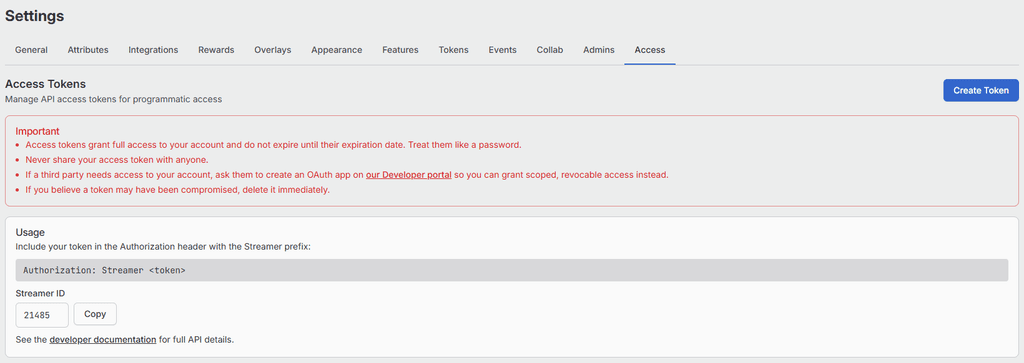
Two things to do here:
- Click the blue “Create Token” button and copy/paste your token to a safe place on your computer for now – never share this with anyone. When you create a token you can set an expiry date – set this far into the future.
- Take note of your Streamer ID number. Copy this somewhere safe too.
Touchportal method
In Touchportal, it’s really simple.
Search for the “Http POST” command and add this to a new button or within an existing sequence if that makes sense for you. You could also add it as part of an event or flow sequence.
The URL to use:
https://api.streamersonglist.com/queue/played?position=playing&streamer_id=<YOUR STREAMER ID NUMBER>

To make sure the Authorisation part works properly, click into the code block and edit it like this:
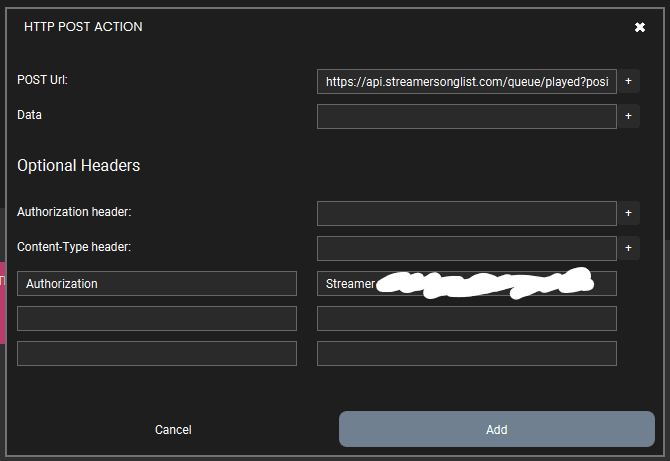
Type the word “Authorization” into the header type and then into the Value box, type Streamer <YOUR STREAMER TOKEN>
There should be a space between Streamer and the token.
That’s everything. When you trigger that action, it will mark the current song as played.
StreamerBot method
It’s not quite as straightforward in StreamerBot because there is no Http Post sub-action to choose from. Instead we will use some C# code.
But before that, let’s add our Streamer ID and our Streamer token to StreamerBot as Global Variables.
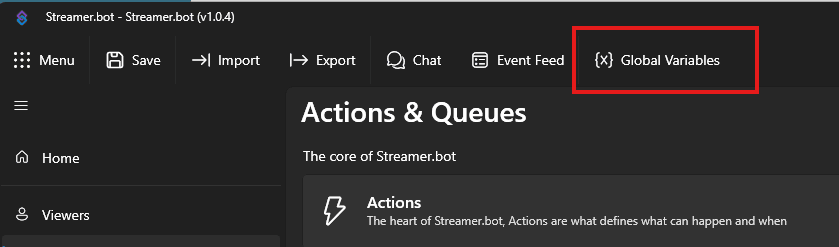
In StreamerBot, choose the menu link for Global Variables
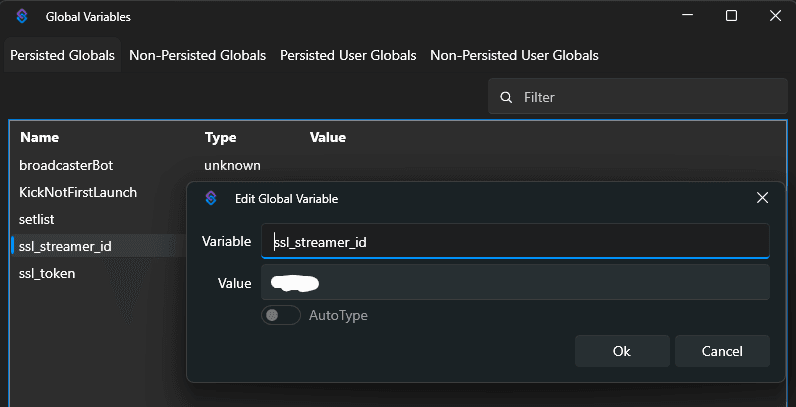
Add a variable called ssl_streamer_id and another called ssl_token, and populate them with the relevant data.
Next create a new ACTION in StreamerBot for the Set Played action.
You can set the trigger to be whatever you need it to be.
For the purposes of testing, you can add a Test Trigger (Add > Core > Test) which will then allow you to test the action manually from within StreamerBot.
The sub-action is where we will add the actual code that performs the action.
Add > Core > C# > Execute C# code
Copy and paste the following C# code into the editor, replacing everything that appears there by default.
using System;
using System.Net.Http;
using System.Net.Http.Headers;
using System.Threading.Tasks;

public class CPHInline
{
    // Reused across calls so we don't leak sockets by creating a new HttpClient every time.
    private static readonly HttpClient httpClient = new HttpClient();

    public bool Execute()
    {
        // Streamer.bot's Execute() must be synchronous, so we block on the async work.
        return PostPlayedAsync().GetAwaiter().GetResult();
    }

    private async Task<bool> PostPlayedAsync()
    {
        // Store the raw token (no "Streamer " prefix) and your streamer ID in Streamer.bot
        // global variables called ssl_token and ssl_streamer_id, so neither is hardcoded
        // in this script. Set them once via a "Set Global Variable" sub-action or the
        // Variables tab.
        string token = CPH.GetGlobalVar<string>("ssl_token", true);
        string streamerId = CPH.GetGlobalVar<string>("ssl_streamer_id", true);

        if (string.IsNullOrWhiteSpace(token))
        {
            CPH.LogWarn("MarkPlayed: ssl_token global variable is empty - aborting POST.");
            return false;
        }

        if (string.IsNullOrWhiteSpace(streamerId))
        {
            CPH.LogWarn("MarkPlayed: ssl_streamer_id global variable is empty - aborting POST.");
            return false;
        }

        string url = $"https://api.streamersonglist.com/queue/played?position=playing&streamer_id={streamerId}";

        try
        {
            using (var request = new HttpRequestMessage(HttpMethod.Post, url))
            {
                // Produces header: Authorization: Streamer <token>
                request.Headers.Authorization = new AuthenticationHeaderValue("Streamer", token);

                var response = await httpClient.SendAsync(request);
                string responseBody = await response.Content.ReadAsStringAsync();

                CPH.SetArgument("ssl.responseCode", (int)response.StatusCode);
                CPH.SetArgument("ssl.responseBody", responseBody);

                if (!response.IsSuccessStatusCode)
                {
                    CPH.LogWarn($"MarkPlayed: request failed ({(int)response.StatusCode}): {responseBody}");
                    return false;
                }

                CPH.LogInfo("MarkPlayed: successfully marked current song as played.");
                return true;
            }
        }
        catch (Exception ex)
        {
            CPH.LogError($"MarkPlayed: exception during POST - {ex.Message}");
            return false;
        }
    }
}
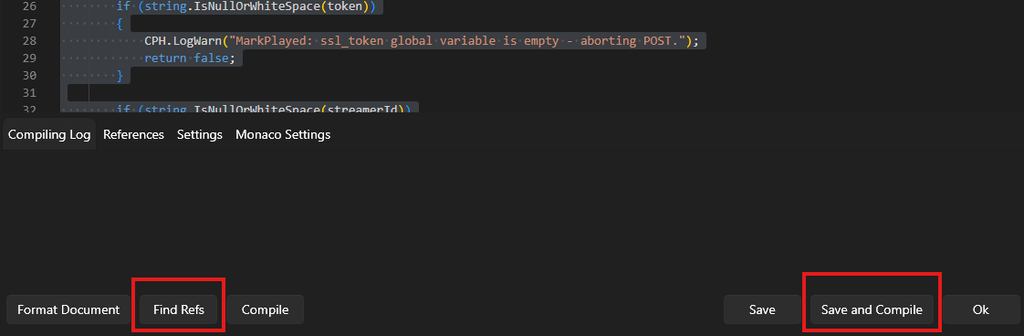
If you click the Compile button, you will likely get some initial errors.
Click the Find Refs button to fix the errors, then Save and Compile.
Making sure that you have a song in your queue, it’s time to test the trigger.
Hopefully it works!
This method will give you a silent way to mark songs as played, without having to enter chat commands that everyone can see.
I hope this has been useful!
Please post any queries or comments below.
Leave a Reply